Git Get Started
Q: Insert the missing part of the command to check which version of Git (if any) is installed.
A: git —version

Q: Initialize Git on the current folder:
A: git init
Git New Files
Q: Check the status of the Git:
A: git status

Git Staging Environment
Q: Add index.html to the Staging Enviornment:
A: git add index.html
Q: Stage all new, modified, and deleted files. Use the shorthand command:
A: git add -A
Git Commit
Q: Commit the changes to the current repository with the message «First release!»
A: git commit -m «First release!»
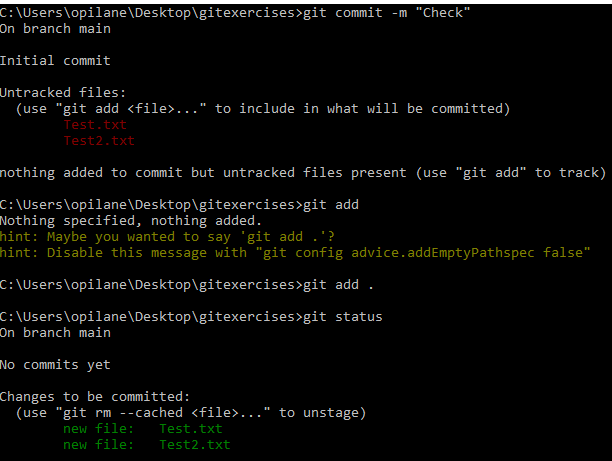
Q: Check the compact version of the status for repository:
A: git status —short
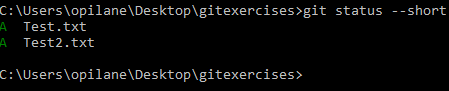
Q: Commit the updated files directly, skipping the staging environment:
A: git commit -a -m «New line added»
Q: View the history of commits for the repository:
A: git log
Git Help
Q: Show the possible options for the status command in command line:
A: git status -help
Q: Show all git possible commands in command line:
A: git help —all
Git Branch
Q: Create new branch
A: git branch name
Q: List the existing branches:
A: git branch
Q: Move to branch named «new»
A: git checkout new
Q: Create, and move to a new branch with the name hello-you:
A: git checkout -b hello-you
Git Branch Merge
Q: How to merge branch with the current branch:
A: git merge branch-name
Q: How to remove branch from the local repository:
A: git branch -d branch-name
Git Remote Get Started
Q: Add a remote repository as an origin:
A: git remote add origin https://github.com/x/y.git
Git Pull from Remote
Q: pull is a combination of:
A: fetch and then merge
Q: Get all the change history of the origin for this branch:
A: git fetch origin
Q: Merge the current branch with the branch master, on origin:
A: git merge origin/master
Q: Update the current branch from its origin using a single command:
A: git pull origin
Git Push to Remote
Q: push the current branch to its default remote origin:
A: git push origin
Git Pull Branch from Remote
Q: List all local and remote branches of the current Git.
A: git branch -a
Q: List only remote branches of the current Git.
A: git branch -r
Git Clone
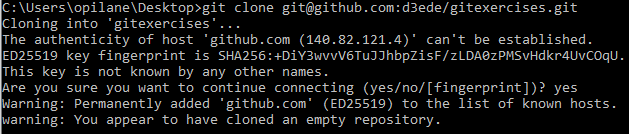
Q: Clone the repository: https://abc.com/x/y.git to your local Git:
A: git clone https://abc.com/x/y.git
Q: Rename the origin remote to upstream:
A: git remote rename origin upstream
Git .gitignore
Q: In .gitignore add a line to ignore all .temp files:
A: *.temp
Q: In .gitignore add a line to ignore all files in any directory named temp:
A: temp/
Q: In .gitignore add a single line to ignore all files named temp1.log, temp2.log, and temp3.log:
A: temp?.log
Q: In .gitignore, ignore all .log files, except main.log:
A: *.log
A: !main.log
Git Remote Add SSH
Q: Add a new remote named ssh-origin connecting to x/y.git on abc.com using SSH:
A: git remote add ssh-origin git@abc.com:x/y.git
Q: Replace the remote URL for origin with x/y.git on abc.com using SSH:
A: git remote set-url origin git@abc.com:x/y.git
Git Revert
Q: Show the log of the repository, showing just 1 line per commit:
A: git log —oneline
Q: revert the latest commit:
A: git revert HEAD
Q: revert the latest commit, skipping the commit message editor:
A: git revert HEAD —no-edit
Q: revert the two last commits:
A: git revert HEAD~1
Git Reset
Q: reset to the commit with the hash abc1234:
A: git reset abc1234
Git Amend
Q: Amend the previous commit to with the message "Updated index":
A: git commit —amend -m «Updated index»